How to Count Characters in Word: 4 Quick Methods
By MagicTextTools Team · November 27, 2026
Why the Character Total Matters
If your limit is set in characters, the word total alone does not help. Learning how to count characters in word takes less than a minute, because Word already tracks both numbers: characters with spaces and characters without spaces. Both totals sit in the same Word Count box, and the only skill is knowing which one your limit wants.
Most limits fall into two groups. A social media bio, a meta description, or an online form usually counts every keystroke, so use characters with spaces. An academic submission or a translation quote often counts characters without spaces. When the limit does not say which one, use the with-spaces number, since most text boxes count every keystroke.
Method 1: Click the Count in the Status Bar
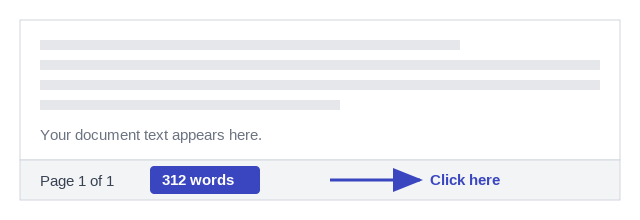
This is the fastest way, and the one most people need. The status bar runs along the bottom of the Word window, and at the bottom left it shows a live word total, for example "312 words."
- Open the document in Word.
- Look at the bottom left of the window for the word total.
- Click that number. The Word Count box opens.
- Read the two character lines: Characters (no spaces) and Characters (with spaces).
- Click Close when you are done.
If you cannot see the word total, right-click the status bar and tick Word Count in the menu that appears. In recent Microsoft 365 builds, the same menu also offers Character Count (with spaces), which pins a live character total to the status bar so you can watch it while you type.
Method 2: The Word Count Dialog
The Word Count dialog gives you the full breakdown. Use it when you need more than the two character lines, or when the status bar is hidden.
- Open the document in Word.
- Go to the Review tab on the ribbon.
- Click Word Count in the Proofing group.
- Read the character totals in the dialog. It also lists pages, words, paragraphs, and lines.
- Click Close when you are done.
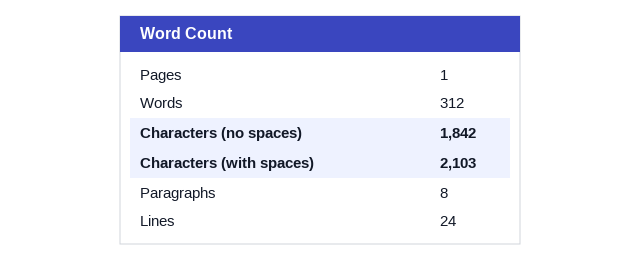
At the bottom of the dialog there is a checkbox called "Include textboxes, footnotes and endnotes." By default, Word leaves those out of the count. Tick the box if your limit is supposed to include them, for example when footnotes are part of an academic paper. If your count looks lower than expected, that checkbox is the first thing to check.
Method 3: Count Selected Text Only
Sometimes the limit applies to one answer, not the whole document. For example, a job application may allow 500 characters for a single response inside a much longer file. Select the text first, and Word counts only that part.
- Drag across the text you want to count, or click at the start, hold Shift, and click at the end.
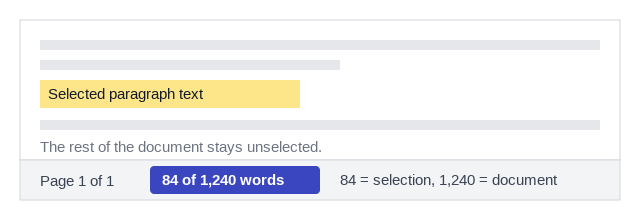
- Look at the status bar. It now shows something like "84 of 1,240 words." The first number is your selection, the second is the whole document.
- Click that count to open the Word Count box. The character numbers now cover only your selection.
To count several separate passages at once, select the first one, then hold Ctrl while you select the others. Keep the selection active while you open the count. If you click elsewhere first, Word goes back to counting the whole document.
Method 4: Word for Mac and Word for the Web
The count is the same on a Mac and on the web, but the menus have different names.
On Word for Mac, click the word count in the status bar to open the Word Count box, then read the character totals. You can also open the same box from the menu bar: choose Tools, then Word Count. To count a selection, highlight the text first, then open Word Count the same way.
In Word for the web, open Review, then Word Count. The web version shows words, characters with spaces, characters without spaces, and paragraphs. The status bar at the bottom also shows the live word count, just like the desktop app. In the Word mobile app, the count appears in the status bar or under the Review tools, depending on your device.
If you need the count for anything official, like an assignment limit, trust the desktop count, because it is the only one that shows whether footnotes and text boxes are included.
Which Method Should You Pick
- Need the character total in seconds: click the count in the status bar.
- Need the full breakdown, or the status bar is hidden: Review, then Word Count.
- Need the count for one paragraph or one answer: select the text first, then open the count.
- Working on a Mac: click the status bar count, or Tools, then Word Count.
- Working in a browser: Review, then Word Count in Word for the web.
If you remember one rule, make it this: read the Characters lines, not the Words line. The word total is the big number at the top of the dialog, and it is easy to copy the wrong one.
Common Mistakes
Reading the word total instead of the character lines. The dialog lists words first and characters below. Copy the Characters (with spaces) or Characters (no spaces) line, depending on what your limit asks for.
Counting the whole document for a one-answer limit. A limit on a single response needs a selection. Highlight that answer first, or the total will be far too high.
Forgetting footnotes and text boxes are excluded. By default, Word leaves footnotes, endnotes, and text boxes out of the count. Tick "Include textboxes, footnotes and endnotes" in the dialog when your limit includes them.
Comparing Word with an online counter and getting a different number. A selection can include a trailing space, which makes the result one character higher than the same text pasted into another tool. Check for a trailing space first, then compare the same with-spaces or without-spaces number on both sides.
Using the without-spaces number for a web form. Most online boxes count every keystroke, including spaces. When the form does not say which count it wants, use characters with spaces.
Frequently Asked Questions
Which character count should I use for a limit?
Use characters with spaces when the limit counts every keystroke, as most web forms, bios, and meta descriptions do. Use characters without spaces when the limit says "excluding spaces" or "non-space characters," as some academic and translation limits do. When the limit does not say, use the with-spaces number.
Why does my count differ from an online counter?
The two tools may be counting different text. Word leaves footnotes, endnotes, and text boxes out unless you tick the checkbox in the Word Count dialog, and a selection can include a trailing space that adds one character. Match the same text and the same with-spaces or without-spaces number on both sides.
Can I see the character count while I type?
Yes, on recent Microsoft 365 builds. Right-click the status bar and tick Character Count (with spaces) to pin a live character total to the bar. Otherwise, click the word count in the status bar whenever you want a quick check.
Does Word for the web show characters?
Yes. Open Review, then Word Count in Word for the web, and you will see words, characters with spaces, characters without spaces, and paragraphs. The status bar also shows the live word count.
Do spaces count as characters in Word?
Yes, in the Characters (with spaces) total, and no, in the Characters (no spaces) total. Punctuation, numbers, and symbols count in both totals. Pick the line that matches what your limit asks for.
Faster Alternative: Count Characters Online
If your text is not in Word yet, or you want extra stats like reading time, our free online Character Counter counts characters as you type, with and without spaces, plus words, sentences, and paragraphs. There is no signup and nothing is sent to a server. If you need the word total instead, see our guide on checking word count in Word.