How to Alphabetize in Excel: A to Z in Seconds
By MagicTextTools Team · November 26, 2026
What Alphabetize Means in Excel
Learning how to alphabetize in excel starts with knowing what Excel means by alphabetical order. A to Z order puts words in order by their letters, from A first to Z last. Numbers come before letters, and blank cells drop to the bottom. Sorting is not case sensitive by default, so "apple" and "Apple" are treated as the same word.
That order decides the result. A list of product codes sorts by the first character, so "A10" comes before "A2" because the character "1" comes before "2".
Before you sort anything, save a copy of the file, or copy the data to another sheet. A sort moves rows around, and while you can undo with Ctrl+Z right after, there is no way back once the file is closed and saved.
Method 1: The A to Z Button
This is the fastest way, and the one most people need. It sorts one column in a single click and keeps each row together.
- Click one cell inside the column you want to sort. Do not select the whole column, and do not select a block of cells.
- Go to the Data tab and find the Sort and Filter group.
- Click Sort A to Z for ascending order, or Sort Z to A for reverse order.
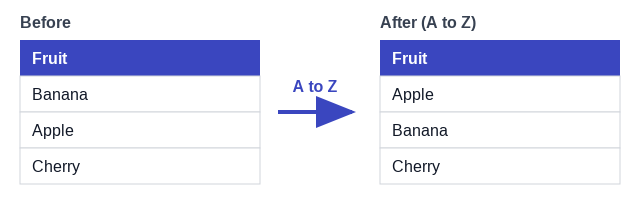
Excel sorts the whole table around that column, so every value in a row moves with its row.
If you select a column of cells first instead of a single cell, Excel may show a Sort Warning. Choose Expand the selection, so the whole row moves together.
Method 2: The Sort Dialog
The Sort dialog gives you control the button does not. Use it when you need more than one rule, or when you need to sort by color or case.
- Click any cell inside your data.
- Go to Data, then click Sort in the Sort and Filter group. You can also press Alt, then A, then S, then S.
- Tick My data has headers if the first row holds column names. Excel then leaves that row where it is and shows the column names in the drop down lists.
- In the Sort by box, pick the column to sort. Under Sort On, pick Cell Values. Under Order, pick A to Z.
- To add a second rule, click Add Level. The Then by row lets you sort by another column when the first column ties. For example, sort by Department first, then by Last Name inside each department.
- Click OK.
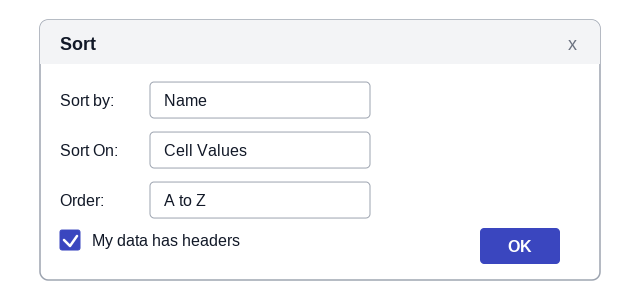
The Sort On box also offers Cell Color, Font Color, and Cell Icon, so you can group rows by their fill or font color. The Options button adds two more choices: Case sensitive, which sorts lowercase before uppercase, and Sort left to right, which sorts columns instead of rows.
Method 3: The SORT Function
The SORT function returns a sorted copy of your data and leaves the original order untouched. The result updates on its own when you change a value in the source range.
- Click an empty cell where the sorted list should start.
- For a single column, enter this formula (change A2:A50 to cover your list):
=SORT(A2:A50)
- To sort a block of data by one of its columns, give the column number and the direction. This formula sorts A2:C50 by the second column, A to Z:
=SORT(A2:C50,2,1)
- Use -1 instead of 1 as the last number to sort Z to A.
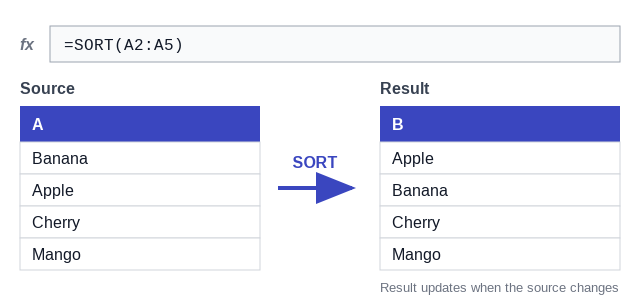
The formula spills its result into the cells below, or to the right for a wide range, so keep that space empty or you will see a #SPILL! error. Also leave the header row out of the range, or Excel will sort the header in with your data.
The SORT function needs Microsoft 365, Excel 2021 or later, or Excel for the web. In older versions the cell shows a #NAME? error, because those versions do not know the function.
Method 4: Sort a Whole Table, Not One Column
Most sorting damage comes from sorting one column while the rest of the table stays put. This method is less a separate tool than the rule that keeps the other methods safe.
- Click one cell inside your table. Do not select a column first.
- Sort with the A to Z button or the Sort dialog. Excel expands the selection to the whole block of connected data and moves every row as one unit.
- If a Sort Warning appears, choose Expand the selection, then click Sort.
Blank rows split a range: Excel stops at the first fully blank row and may sort only the part above it. Delete blank rows first, or select the full range by hand.
Turning the range into a table is the safest setup. Select the data and press Ctrl+T, then sort any column. A table always sorts all of its columns together, so one column can never drift away from the rest.
Merged cells block sorting with an error that they must be identically sized. Unmerge them first, under Home, then Merge and Center.
Method 5: Sort Names by Last Name
Excel sorts by the first word in a cell, so "John Smith" sorts under J, not under S. To sort by last name, split the names into two columns first.
- Select the column that holds the full names.
- Go to Data, then click Text to Columns.
- Choose Delimited and click Next.
- Tick Space as the delimiter and click Next, then click Finish. First names land in one column and last names in the next.
- Now sort by the last name column with the A to Z button or the Sort dialog.
Once the rows are in order, you can delete the helper columns. The sort order stays.
Which Method Should You Pick
- Need one column sorted in seconds: the A to Z button.
- Need two or more rules, or a case sensitive sort: the Sort dialog.
- Need a sorted copy that updates when the data changes: the SORT function.
- Need to sort a full table and keep rows together: click one cell, then sort, and pick Expand the selection if Excel asks.
- Need names in last name order: Text to Columns first, then sort by the last name column.
If you remember one rule, make it this: click one cell, not one column. That single habit prevents almost every sorting accident.
Common Mistakes
Sorting one column without expanding. Selecting a column and sorting it alone moves that column while the rest of the table stays put. Press Ctrl+Z at once, click one cell, and sort again.
Sorting the header row into the data. If the first row holds column names, tick My data has headers in the Sort dialog. Without it, the header sorts into the list like any other value.
Leaving blank rows inside the range. A blank row stops Excel from seeing the data below it. Delete blank rows first, or select the full range by hand.
Leaving merged cells in the range. Merged cells stop a sort with an error. Unmerge them first, and use Center Across Selection for headings instead.
Numbers stored as text. A column of numbers stored as text sorts character by character, so 10 comes before 2. Format the column as numbers first, or run Text to Columns on it to convert the values.
Leading spaces in names. A name that starts with a space sorts before all the others. Use Find and Replace to clear the spaces, or the TRIM function to remove them.
Frequently Asked Questions
Can I sort a list A to Z without changing the original order?
Yes. Use the SORT function, which returns a sorted copy and leaves the source range untouched. Or copy the data to a new sheet and sort the copy.
Why did my rows get mixed up after sorting?
You probably sorted one column on its own. Press Ctrl+Z to undo, then click one cell inside the table and sort again. Excel will expand the selection to the whole table and move each row as one unit.
Does Excel sort numbers before letters?
Yes. In an A to Z sort, numbers come first, then text, then logical values, then errors. Blank cells go to the bottom.
How do I sort by last name when the full name is in one cell?
Split the names first. Select the column, go to Data, then Text to Columns, pick Delimited with Space as the delimiter, and finish. Then sort by the last name column.
Why is 10 sorting before 2?
The numbers are stored as text, so Excel compares them character by character. Select the column, go to Data, then Text to Columns, and click Finish to convert them to numbers.
Faster Alternative: Sort a Text List Online
If your list is plain text and not a spreadsheet, you do not need Excel at all. Our free online Alphabetical Order Sorter arranges your lines from A to Z or Z to A in one click. Paste the list with one entry per line, and copy the sorted result. There is no signup and nothing is sent to a server.